🎨 Pillow Basics
Understanding how Pillow was used in Fly-in and learning the fundamentals of image generation in Python.
📚 Table of Contents
- What is Pillow?
- Why Pillow was used in Fly-in
- 🖼️ Creating Your First Image
- ✏️ Drawing Shapes
- 🔤 Drawing Text
- 🔠 Loading Fonts
- 💾 Saving Images
- 📸 Creating Animation Frames
- 🎬 Generating GIFs
- 🧰 Common Pillow Objects
- 🛩️ Pillow in Fly-in
- 🧠 Mental Model
🎨 What is Pillow?
Pillow is the modern version of the original Python Imaging Library (PIL).
It is one of the most popular Python libraries for working with images and allows developers to create, edit and manipulate images directly from code.
With Pillow, it is possible to:
- create images from scratch
- draw shapes
- render text
- modify existing images
- generate animations and GIFs
Because of its simplicity and flexibility, Pillow is often used for automation, image processing and visualization projects.
🚀 Why Pillow was used in Fly-in
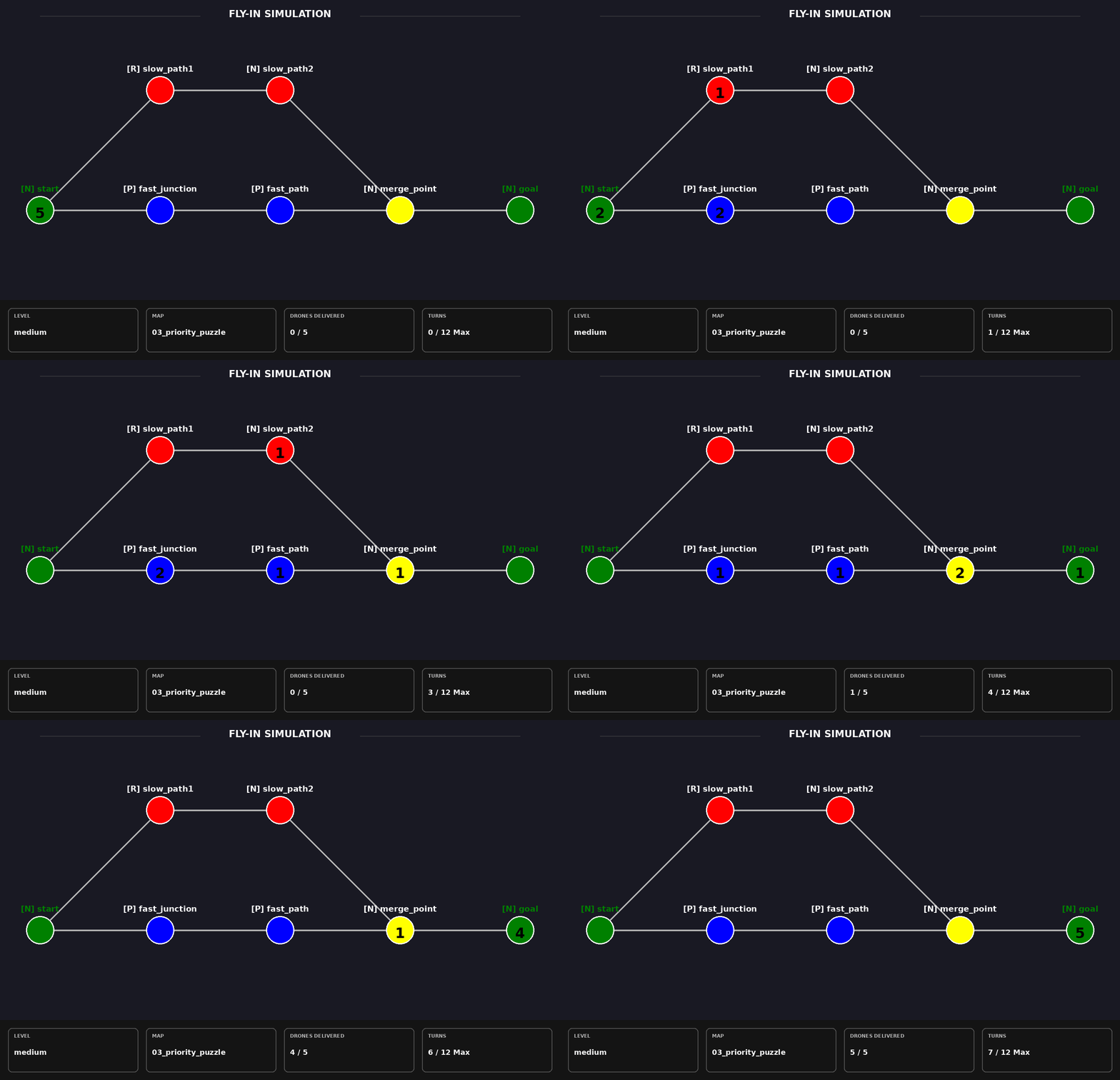
The Fly-in project only requires terminal output. During development, however, it quickly became clear that following dozens of drones moving through a graph was not always easy by reading text alone.
To better understand the simulation, Pillow was introduced as an additional visualization tool.
Each simulation turn generates an image showing:
- the current drone distribution
- active zones
- graph connections
- simulation statistics
These images are then combined into an animated GIF representing the complete simulation.
Besides making the project more visually appealing, the generated frames became an extremely useful debugging tool, helping identify movement bottlenecks, restricted-zone behavior and capacity issues.
🖼️ Creating Your First Image
Creating an image with Pillow is surprisingly simple.
from PIL import Image

img = Image.new(
    "RGB",
    (800, 600),
    "black"
)

img.save("image.png")
This creates a black image with a resolution of:
800 x 600
and stores it on disk.
✏️ Drawing Shapes
Once an image exists, Pillow allows drawing directly on top of it.
from PIL import ImageDraw

draw = ImageDraw.Draw(img)
This creates a drawing context.
Drawing a Circle
draw.ellipse(
    (100, 100, 200, 200),
    fill="red"
)
Drawing a Rectangle
draw.rectangle(
    (50, 50, 250, 150),
    fill="blue"
)
Drawing a Line
draw.line(
    [(0, 0), (300, 300)],
    fill="white",
    width=3
)
In Fly-in, circles are used to represent zones while lines represent graph connections.
🔤 Drawing Text
Images become much more useful when information can be displayed directly on them.
Pillow allows rendering text anywhere on the image.
draw.text(
    (100, 100),
    "Hello World",
    fill="white"
)
The coordinates represent the top-left corner of the text.
📏 Centering Text
Centering labels is a common requirement.
A useful approach is:
bbox = draw.textbbox(
    (0, 0),
    text,
    font=font
)

text_width = bbox[2] - bbox[0]
The calculated width can then be used to perfectly center the text.
This technique is heavily used in Fly-in for zone labels and drone counters.
🔠 Loading Fonts
The default Pillow font is very limited.
For more professional-looking text, custom fonts can be loaded:
font = ImageFont.truetype(
    "DejaVuSans-Bold.ttf",
    24
)
The second parameter controls the font size.
Fly-in Example
title_font = ImageFont.truetype(
    "/usr/share/fonts/truetype/dejavu/DejaVuSans-Bold.ttf",
    24
)
This font is used throughout the project for titles, statistics and labels.
💾 Saving Images
Once the image is complete, it can be saved to disk.
img.save("map.png")
Pillow supports many formats:
PNG
JPG
WEBP
BMP
GIF
For Fly-in, PNG is used because it provides excellent image quality.
📸 Creating Animation Frames
One of the most useful features of Pillow is the ability to generate images programmatically.
In Fly-in, every simulation turn generates a new frame.
frame_000.png
frame_001.png
frame_002.png
frame_003.png
...
Each frame represents a snapshot of the simulation at a specific moment.
This approach makes it possible to visualize the entire drone delivery process step by step.
🎬 Generating GIFs
A GIF can be thought of as a digital flipbook.
Each image represents a small moment in time. When those images are displayed quickly enough, the human eye perceives them as motion.
After all simulation frames have been generated, Pillow combines them into a single animated GIF.
frames[0].save(
    "simulation.gif",
    save_all=True,
    append_images=frames[1:],
    duration=500,
    loop=0
)
The resulting animation allows the user to watch the entire simulation from start to finish.
🧰 Common Pillow Objects
Pillow revolves around three main objects.
🖼️ Image
Represents the actual image.
img = Image.new(...)
Think of it as the canvas.
✏️ ImageDraw
Responsible for drawing on the image.
draw = ImageDraw.Draw(img)
Think of it as the pencil.
🔠 ImageFont
Responsible for text rendering.
font = ImageFont.truetype(...)
Think of it as the marker used to write on the canvas.
🛩️ Pillow in Fly-in
The ImageGenerator class uses Pillow extensively throughout the project.
It is responsible for rendering:
🔗 Connections
draw.line(...)
Used to represent graph edges.
🎯 Zones
draw.ellipse(...)
Used to represent drone hubs and locations.
🏷️ Zone Labels
draw.text(...)
Used to identify important locations.
🛸 Drone Counters
Drone amounts are displayed directly inside each zone.
This makes congestion and bottlenecks immediately visible.
📊 Statistics Dashboard
Pillow is also used to create the simulation report displayed at the bottom of each frame.
Information such as:
- current turn
- delivered drones
- map name
- maximum allowed turns
is rendered directly onto the image.
🎬 Animation Output
Finally, all generated frames are combined into:
simulation.gif
providing a complete visual representation of the simulation.
🧠 Mental Model
Think of Pillow as a digital art studio.
🖼️ Image
The canvas.
✏️ ImageDraw
The pencil.
🔠 ImageFont
The marker.
💾 save()
Taking a photo of the finished work.
🎬 GIF
A flipbook animation where each page is one simulation frame.
🎯 Final Takeaway
Although Pillow was not required by the Fly-in subject, it became one of the most valuable tools used during development.
It provided:
✅ Visual Debugging
✅ Frame Generation
✅ GIF Animations
✅ Better Understanding of Drone Movement
✅ Practical Experience with Image Processing
Most importantly, it transformed raw simulation data into something that could be seen, explored and understood visually.